
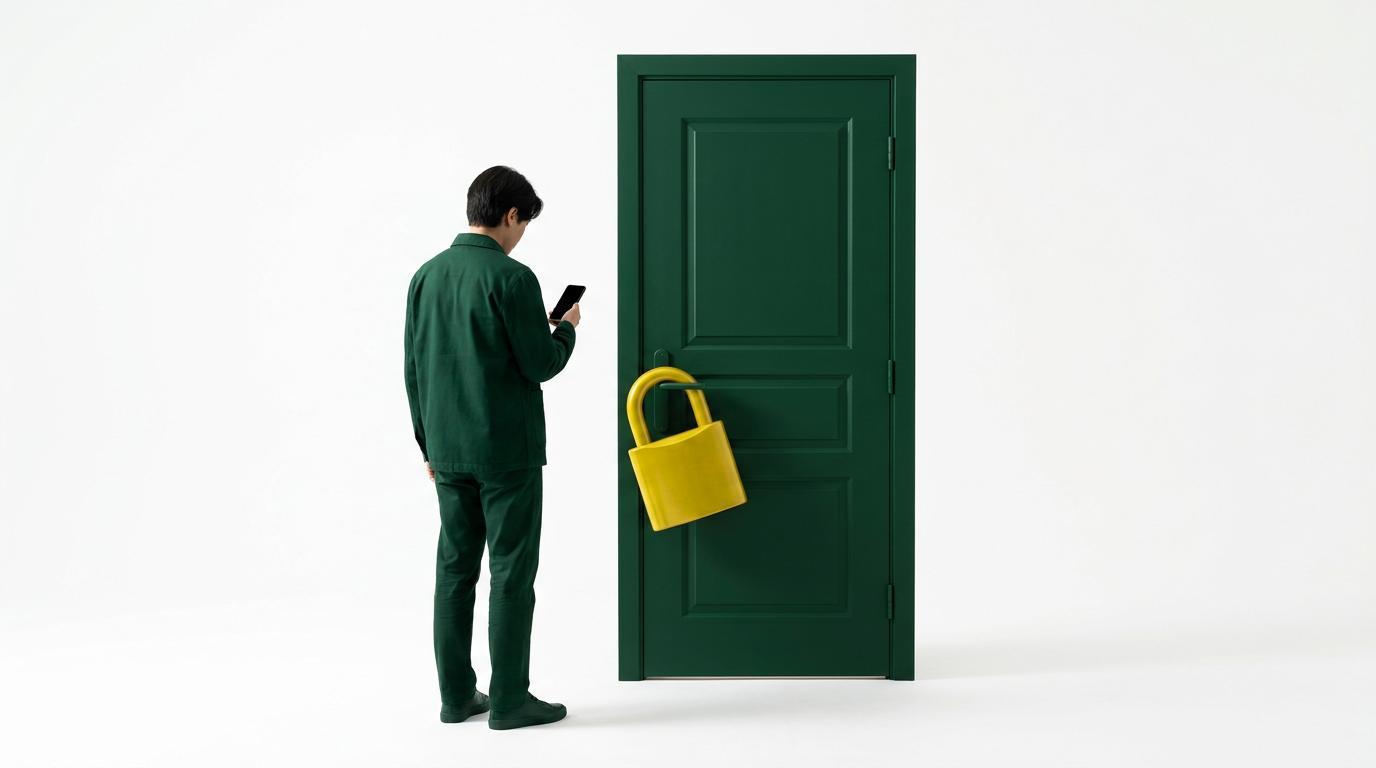
It’s 8:40 on the Friday after Thanksgiving. A customer has been meaning to come in all week, and today’s her day off. She checks Google, sees you open at 9, and drives over.
The lights are off. You closed for the long weekend, and only the sign on your door knows.
She doesn’t call to complain. She goes to the place down the road, and next time she starts there.
When we asked 115 people where they look first for a local business, 70% said Google (Search or Maps). If your hours on Google are wrong, that’s the version of your business most of them get.
The fix takes about ten minutes. Here’s how to change your regular hours, how to set holiday hours, and what to do when Google changes them for you.
Section 1How to change your regular hours on Google
You’ll need to be signed in to the Google account that manages your Business Profile.
- Go to your Business Profile on Google.
- Select Edit profile, then Hours.
- Next to “Hours”, select the edit option and choose Open with main hours.
- Check each day you’re open and set the opening and closing times.
- Select Save.
These steps are for Google Search on a computer. In the Google Maps app, start from the Business tab.
Three settings that trip owners up:
- Closed for lunch or between shifts? Add two sets of hours for the same day, for example 9 a.m. to 2 p.m. and 5 p.m. to 10 p.m.
- Open around the clock? Choose 24 hours for that day.
- Don’t want hours shown at all? Choose Open with no main hours. Use it with care: if you do, holiday hours can’t show either (more on that below).
After you save, Google may show customers a short note on your profile confirming the update.
What this means for you: check your hours against the sign on your door today, not when a customer tells you they’re wrong.
Section 2How to set holiday hours on Google
Google calls these special hours. They change your hours for a specific date and leave your regular week alone.
- Go to your Business Profile and select Edit profile, then Hours.
- Next to “Special hours”, select the edit (pencil) icon.
- Pick one of the dates Google suggests (select Review), or select Add a date for your own.
- Enter the hours for that day, or mark it closed.
- Select Save.
The rules Google sets:
- Your main hours must be on. Special hours only show if your hours are set to “Open with main hours”.
- Six days at most. Special hours cover closures and changes of up to 6 days in a row. Closing for 7 days or more? Mark the business Temporarily closed instead.
- Past midnight? Split it. One set of special hours can’t run longer than 24 hours, so a late night becomes two entries: one ending at midnight, one starting at midnight the next day. The second day’s regular hours get replaced, so re-enter any you want to keep.
- Open as normal? Set it anyway. Google recommends confirming your hours for official holidays even when they’re the same as usual. Around some holidays, Google may show customers a warning that your hours might differ. Setting the day’s hours in advance tells them what to expect.
What this means for you: a holiday where nothing changes still needs an entry. “Open as normal” is information too.
Section 3The holidays Google flags this season
These are the US dates on Google’s holiday list between now and New Year, the ones where customers may see that your hours might be different:
| Date | Holiday |
|---|---|
| Wed, Nov 11 | Veterans Day |
| Thu, Nov 26 | Thanksgiving |
| Fri, Nov 27 | Black Friday |
| Thu, Dec 24 | Christmas Eve |
| Fri, Dec 25 | Christmas |
| Thu, Dec 31 | New Year’s Eve |
| Fri, Jan 1 | New Year’s Day |
Some states have their own dates too (Georgia and Washington, for example, mark Nov 27 as a state holiday or Native American Heritage Day). Google’s holiday page lists them all.
Set all seven in one sitting. It’s about ten minutes, and then the season is done.
Section 4Why Google changed your hours
You set your hours. A week later they’re different. Usually, it’s not a glitch.
Google gathers business information from several sources, including reports from people who use Google. If those sources say your hours are wrong or out of date, Google may update your profile. In your profile editor, fields that Google changed are highlighted, and a note appears at the top when there are updates waiting.
Customers can also suggest edits. When a suggestion needs your review, Google may email you or show a notification. You then have 4 days to accept or reject it. If you don’t respond, Google may publish the change when other public information backs it up, such as your website.
How to stop it happening again:
- Fix the hours on your profile directly. Don’t wait for Google to work it out.
- Make your website say the same thing. If your site still lists last year’s hours, it can back up a wrong suggestion.
- Answer the 4-day emails. Accept the right ones and reject the wrong ones.
How we help
Want it done for you? We fix your Business Profile, keep it up to date and post to it every month.
Section 5Why Google won’t let you change your hours
Three common causes:
- Your edit is waiting for review. Google reviews changes before they go live. It usually takes about 10 minutes, but it can take up to 30 days. Wait for the review to finish, then check again.
- The profile isn’t verified yet. Until it is, Google may not let you edit everything.
- You’re signed in to the wrong account. Only owners and managers of the profile can edit it. If someone else set it up, ask them to add you.
What this means for you: if your hours won’t stick, check which Google account you’re signed in to before anything else.
Your hours are what people check before they set off. Your reviews are what they read before they choose you. That’s the other half: how to get more Google reviews, from our survey of 115 people.
Your holiday hours checklist (10 minutes, this week)
1. Open your profile and check your regular hours against your door sign.
2. Add special hours for every date in the table above, even the ones where you’re open as normal.
3. Closing for a week or more? Use Temporarily closed, not special hours.
4. Update your website so it says the same thing as Google.
5. Put a reminder in your calendar for the first week of December to check that nothing has changed.
How many reviews behind are you?
Your free Competitor Review Report lines your Google reviews up against the businesses near you, in plain numbers, and shows you the gap and what to fix first.
Free. No obligation. No Google login needed.
Frequently asked questions
How do I change my business hours on Google?
Go to your Business Profile, select Edit profile, then Hours. Choose Open with main hours, set the times for each day you’re open, and select Save.
How do I set holiday hours on Google?
In your Business Profile, select Edit profile, then Hours. Next to Special hours, select Edit, pick a suggested holiday or add your own date, enter the hours or mark the day closed, and save.
Why is Google showing the wrong hours for my business?
Google gathers business information from several sources, including reports from people who use Google, and may update your profile from them. Check your profile editor for highlighted changes, fix the hours directly, and make sure your website shows the same hours.
Do I need to set holiday hours if I’m open as normal?
Google recommends it. Around some holidays, Google may warn customers that your hours might differ. Setting the day’s hours in advance tells them what to expect.
How long can special hours last?
Up to 6 days in a row. For 7 days or longer, mark your business Temporarily closed instead.
Can I set hours that run past midnight?
Yes. Split them into two entries: one that ends at midnight and one that starts at midnight the next day.
P.S. Black Friday is November 27. The customer who finds a locked door that morning won’t tell you. She’ll just go somewhere else. Wrong hours are one leak; our free check looks for the others.
See how your reviews stack up against the business down the road: Get my free report →